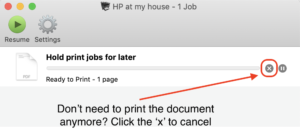
Hold print jobs for later, manage print jobs in print queue
Recently a client asked me if there was a way, while he was away from the office, to work on his documents as normal and just magically have them print out when he returned to his office. It turns out that there is and it’s easy to enable. To wit:
For starters, it’s good to have a shortcut for the printer in your Dock. (Bear in mind, you may have multiple printers in your life – even multiple printers in your office, so adapt these instructions accordingly.) If you already have (a) shortcut/s for your printer in your Dock, skip ahead to Step 6.
-
- Open System Preferences. (There’s an easy way to do this. Look at the very top left of your screen – there’s a black apple icon up there. Click on it, and a menu drops down, giving you quick access to the System Preferences program. By the way — the “…” after the name gives you a hint that clicking on that item in the menu will cause a follow-on action to occur — in this case, opening a new program. In other instances in this same menu, you’ll see that choices like Restart… and Shut Down… are also followed by the ellipsis; in those cases, clicking one of those choices makes a dialog box pop up, where you are asked to confirm your choice, rather than simply having the choice take immediate effect. If you would like your choice to take immediate effect, rather than being asked impertinent questions by your computer, you can hold down the Option key on your keyboard before clicking one of those choices, and the ellipsis will disappear and your click will cause the action to occur without further dialog boxes popping up and asking you if you’re sure, e.g., you want to shut down.
- When System Preferences is open, click on Printers & Scanners.
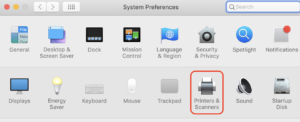
- Select the printer for which you want a shortcut in the Dock (that is, click on the picture of the printer or the text showing the printer’s name – you’ll find all the printers that your computer ‘knows’ about shown on the left side of the Printers & Scanners window.)
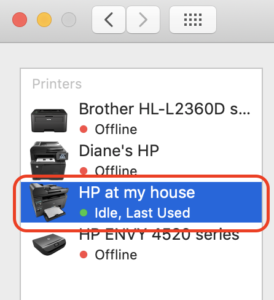
- Once you have highlighted/selected your printer, look over on the right side of the preference pane and you’ll see your printer shown in larger view. Click on the “Open Print Queue…” button. (Ellipsis!)

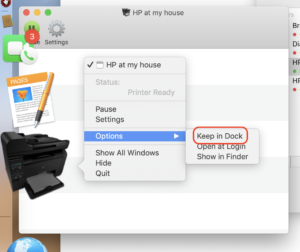
- A new window will open onscreen — this is the window showing your printer’s “queue” of pending print jobs — and at the same time the icon for your printer will appear in your Dock. We want this icon always to be accessible (rather than disappearing once you close the printer’s queue window), so right-click/control-click/2-finger click/Click-and-hold on the icon to bring up a contextual menu, and choose “Options” > “Keep in Dock”
- Now we’re going to look a little more closely at the printer’s queue. At the top of the printer queue window you’ll see a green “Pause” button. Click that button, and the printer will be paused. At this point, with the printer paused, any print jobs you send to printer won’t print out — they’ll just be kept in the queue, waiting to be printed when you un-pause (“Resume”) printing. You can be away from your printer for weeks, and print jobs will just build up, waiting to be printed.
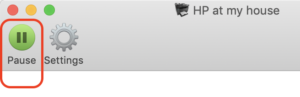
- While the printer is paused, anytime you’ve finished working on a document in whatever program — in Word, or Pages, or Excel, or Acrobat — and you choose to send the finished document to the paused printer, you’ll get a dialog telling you the printer is paused; the dialog will offer either to “Add (job) to Printer” or “Resume” (printing.) If you choose “Add to Printer,” the job will just wait, along with any others, until you’re ready to print. If you’re ready to print (the current document, and all the other jobs), hit “Resume.”

- Once you’ve returned to your printer’s location and you want to print all the print jobs that have collected in the queue since you paused the printer, you’ll want to un-pause or “Resume” the printer so the queued-up jobs can print. To do this, just open the print queue (by clicking on the icon for your printer in the Dock), then click the green “Resume” button. This is the function my client wanted to take advantage of — finish documents on the road and place them in the queue. (This allows him to quit Word or Pages or Acrobat without worrying that he’ll lose track of which completed documents he needs to print out upon his return to the office. The queue takes over management of those completed documents for him.)

- Lastly, if you decide you no longer want or need to print a certain document that’s been waiting in the queue, you can delete it. To delete a print job from the queue, click on the printer icon in your Dock to open the printer queue, then click the “x” next to the document’s name to delete the print job.